Google Sign-In for Salesforce Experience Cloud looks simple from the user side: click Sign in with Google, authenticate, and enter the portal.
Behind that button, Salesforce redirects the user to Google, receives the OAuth/OpenID Connect callback, resolves the external identity, invokes the Registration Handler when required, creates or updates the Salesforce user, maintains ThirdPartyAccountLink, establishes the Experience Cloud session, and redirects the user back to the correct site.
1. Architecture Overview
At a high level:
User
Experience Cloud Login Page
Salesforce Auth Provider
Google OAuth / OpenID Connect
Salesforce Auth Callback
ThirdPartyAccountLink lookup
├─ Existing link → Existing Salesforce User
└─ No link → Registration Handler → Find or create Salesforce User
Salesforce Session
Experience Cloud Site
Salesforce acts as the relying party. Google acts as the external identity provider.
2. Google Cloud Console Setup
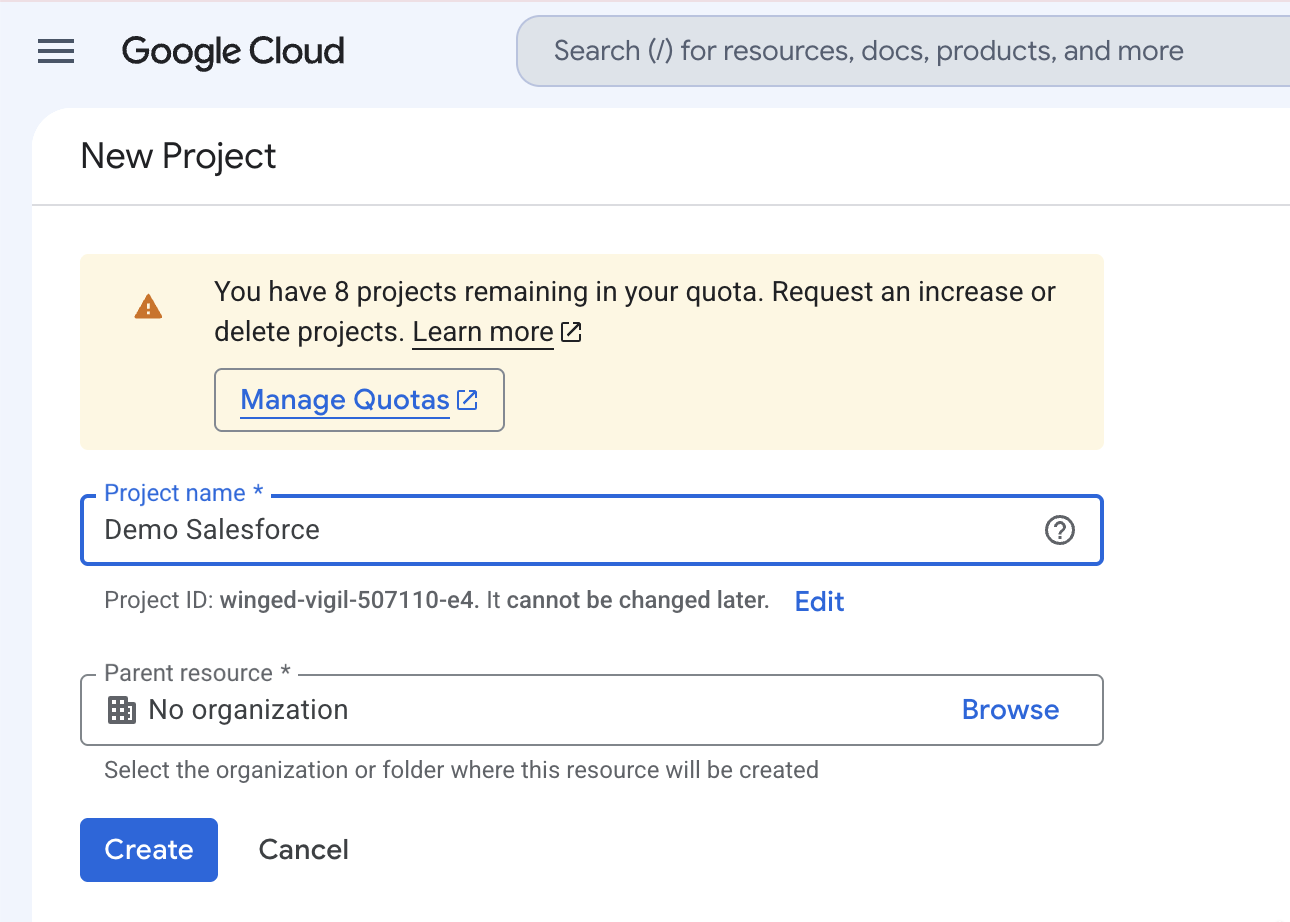
Go to https://console.cloud.google.com/
Create or select a Google Cloud project dedicated to the Salesforce integration where possible. Keeping authentication integrations isolated makes secret rotation, ownership, consent configuration, auditing, and troubleshooting easier.
Configure the OAuth consent screen with the application name, support contact, authorized domain, and publishing type. For public Experience Cloud users, the application normally needs to support external Google accounts.
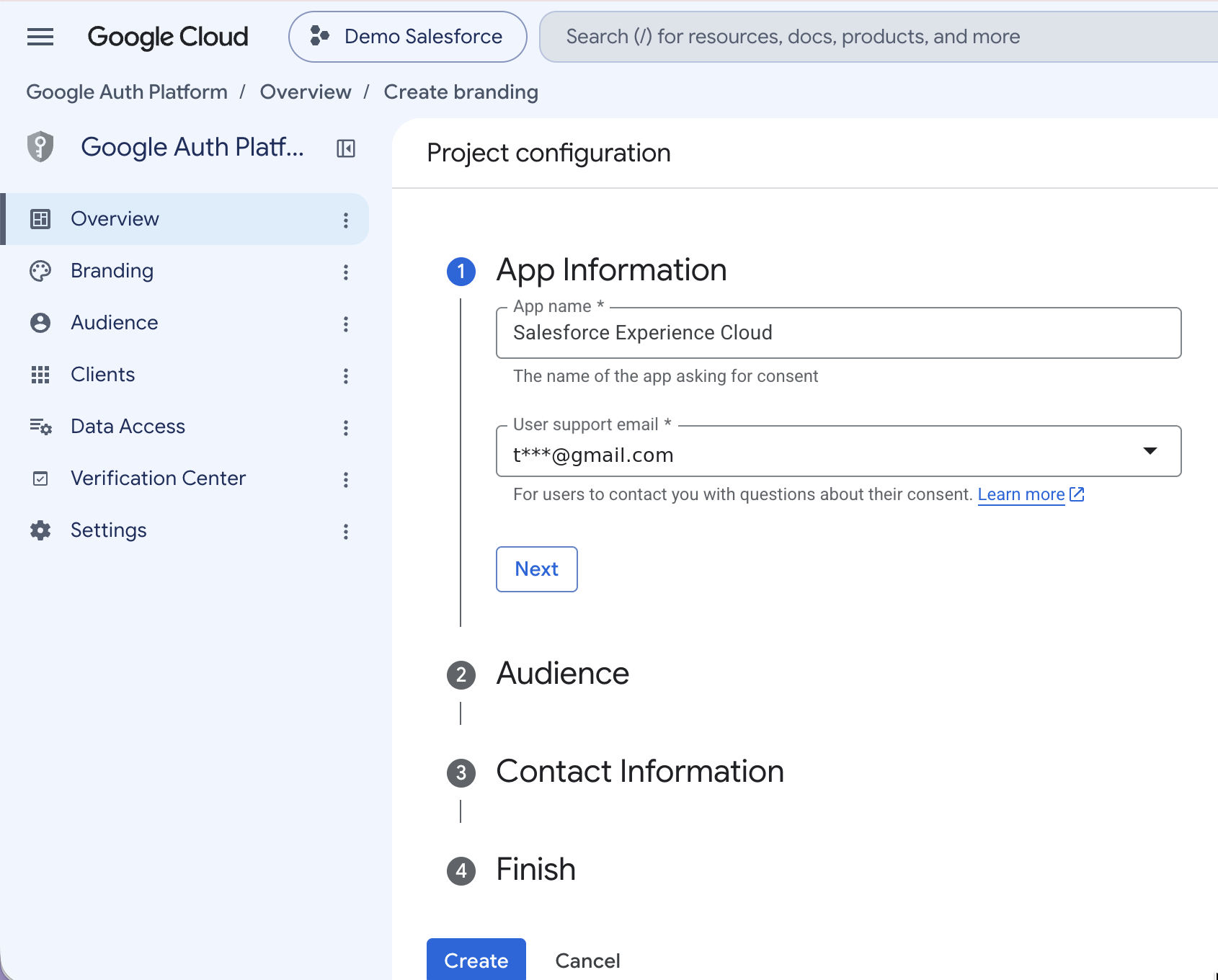
For basic authentication, request only the minimum OpenID Connect identity scopes required by the implementation, typically:
openid
email
profile
3. Create the Google OAuth Client
Create an OAuth client with application type Web application.
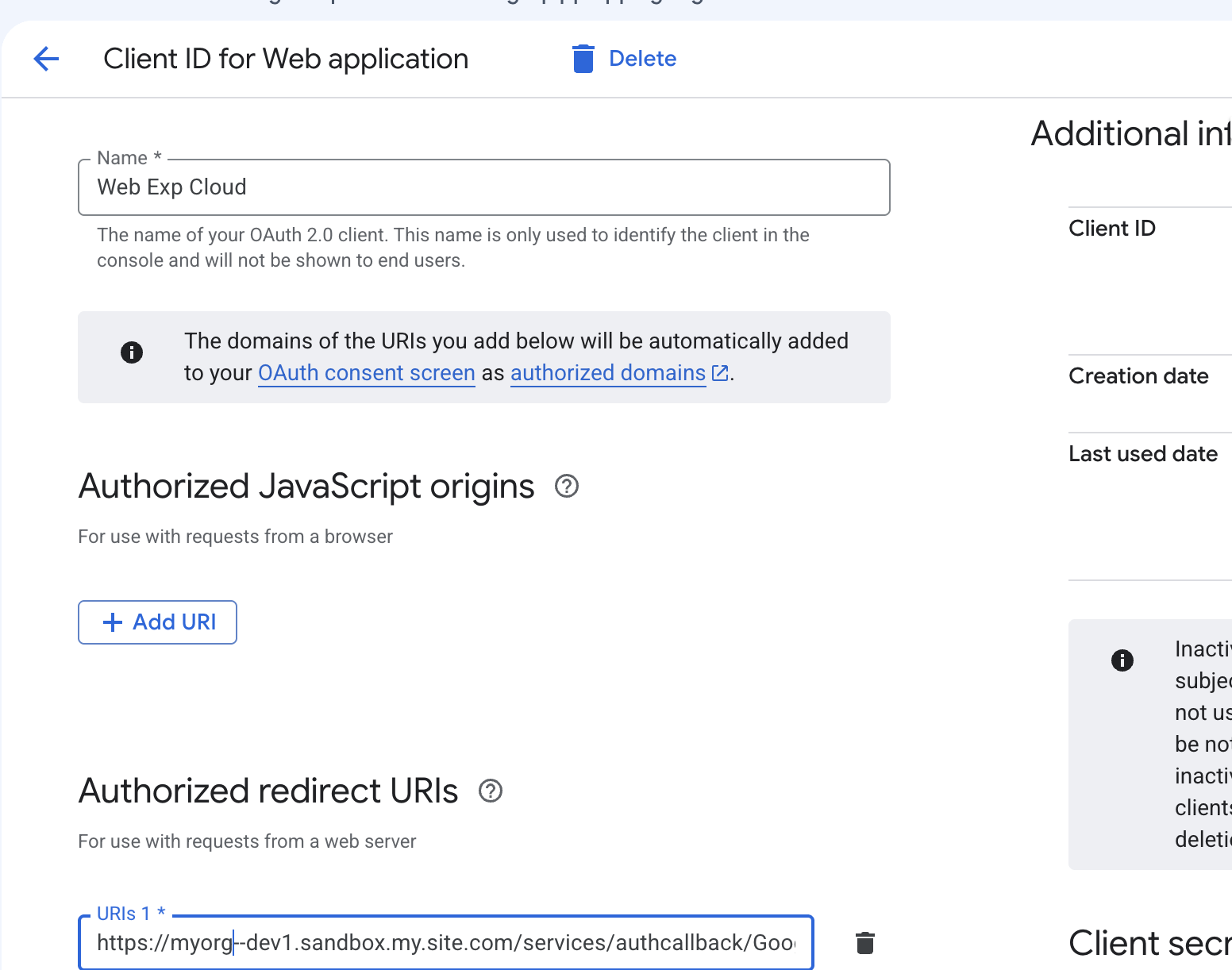
Google provides:
Client ID
Client Secret
These values are later configured in the Salesforce Google Auth Provider as the Consumer Key and Consumer Secret.
There is a configuration dependency:
Google OAuth Client
Create Client ID / Secret
Salesforce Auth Provider
Salesforce generates Callback URL
Return to Google Cloud
Add Salesforce Callback URL as an Authorized Redirect URI
The redirect URI must match the Salesforce callback URL exactly. A mismatch results in errors such as redirect_uri_mismatch.
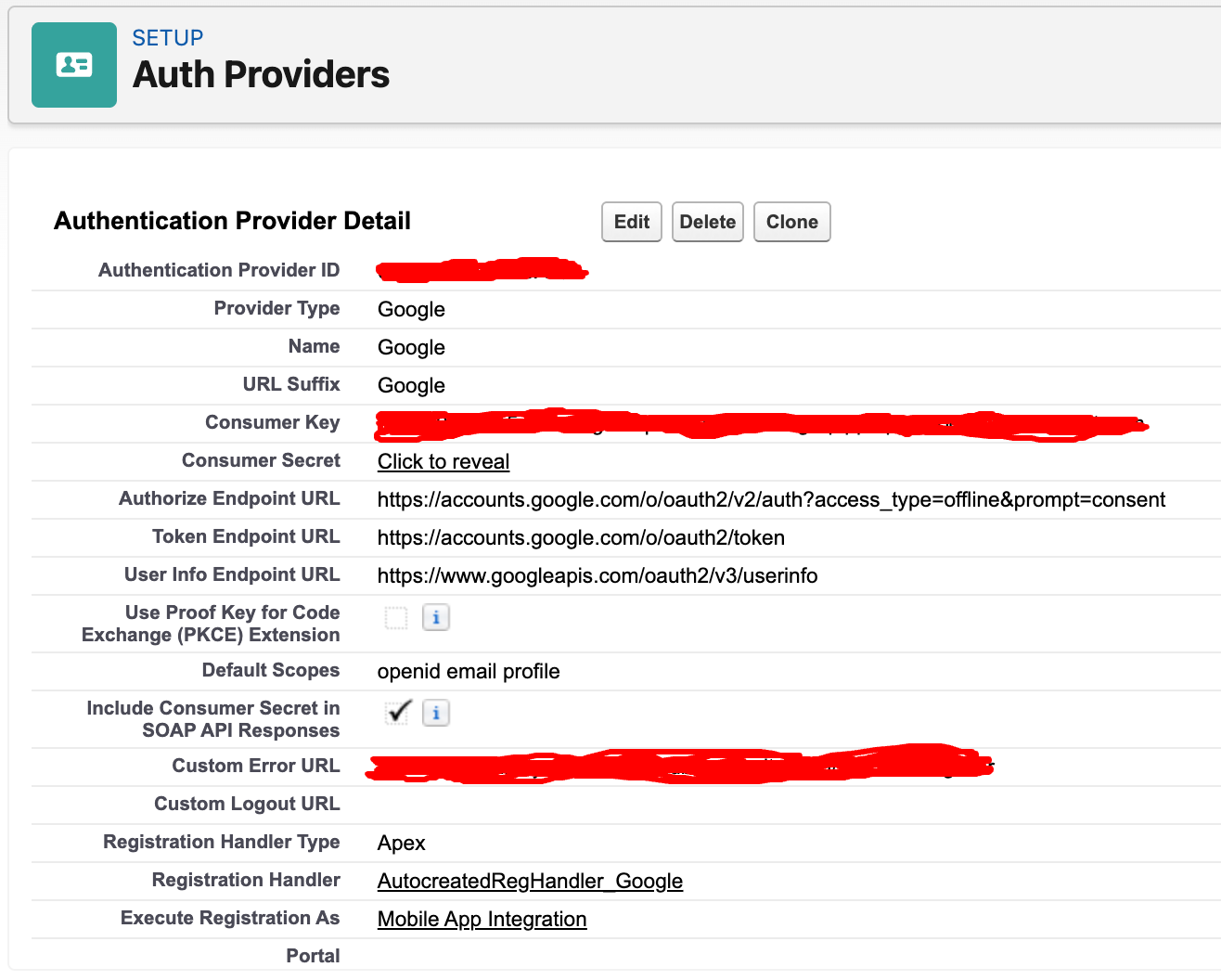
4. Salesforce Google Auth Provider Setup
Navigate to:
Setup → Auth. Providers → New
Select Provider Type: Google.
Configure:
Name
URL Suffix
Consumer Key
Consumer Secret
Registration Handler
Execute Registration As
Custom Error URL where required
Registration Handler
For complex Experience Cloud onboarding, an Apex class implementing Auth.RegistrationHandler provides the most control. Salesforce can automatically generate an initial class to serve as a starting point.
The Auth.RegistrationHandler interface requires only createUser(...) and updateUser(...). A method named canCreateUser(...) is a custom or helper method sometimes used in generated or sample handlers; it is not required by the interface.
Custom Error URL
Specify a custom URL to ensure users are redirected to a dedicated error page whenever an authentication issue occurs.
Execute Registration As
Use a dedicated system or integration user in production rather than a personal administrator account.
This user must have the permissions required by the Registration Handler to create or update objects such as Account, Contact, and User.
5. Salesforce-Generated Auth Provider URLs
After saving the Auth Provider, Salesforce exposes several useful URLs for experience cloud sites, including:
Test-Only Initialization URL
Single Sign-On Initialization URL
Existing User Linking URL
OAuth-Only Initialization URL
Callback URL
Test-Only Initialization URL
Use this during setup to authenticate against Google and inspect the identity data returned to Salesforce.
Single Sign-On Initialization URL
This is the primary entry point for Google login. A custom Experience Cloud page can redirect the browser to this URL instead of implementing Google OAuth itself.
Existing User Linking URL
This is used when an already-authenticated Salesforce user needs to associate an external Google identity with the Salesforce user.
Callback URL
Google redirects to this Salesforce endpoint after authentication. Add this exact URL to the Authorized Redirect URIs in Google Cloud.
6. Experience Cloud Setup
Navigate to the Experience Cloud site's Login & Registration settings and enable the Google Auth Provider for the site.
The site configuration determines:
which authentication providers are available
which Experience Cloud context is used
where the user enters after authentication
which login and registration experience is presented
7. Standard Experience Cloud Login Page
The simplest implementation uses Salesforce's standard login page.
Typical experience:
Username
Password
[ Log In ]
or
[ Continue with Google ]
Advantages:
Minimal custom code
Salesforce manages the SSO entry point
Standard authentication behavior
Lower maintenance
Simpler upgrades
Use the standard page unless branding or business-specific onboarding requirements justify customization.
8. Custom LWC Login Page
A custom login page may contain username/password login together with a Google button.
Example:
Customer Portal
[________________]
Password
[________________]
[ Login ]
OR
[ Continue with Google ]
The LWC should not authenticate directly with Google.
Instead, the Google button redirects the browser to the Salesforce Auth Provider SSO initialization URL.
Conceptually:
Salesforce Auth Provider SSO URL - https://myorg--dev1.sandbox.my.site.com/services/auth/sso/Google
handleGoogleLogin() {
    window.location.href = '<Salesforce Auth Provider SSO URL>';
}
The resulting flow remains:
Custom LWC
Salesforce Auth Provider
Salesforce Callback
Experience Cloud
9. Custom LWC Registration Page
A custom registration page may support both traditional Salesforce registration and Google-based onboarding.
Traditional registration:
Registration LWC
OTP / validation
Apex
Account / Contact
Experience Cloud User
Salesforce credentials
Google path:
Google button
Salesforce Auth Provider
Google authentication
Registration Handler
Resolve or create Account / Contact / User
ThirdPartyAccountLink
Experience Cloud login
These two paths must share a common identity-resolution strategy. Otherwise duplicate Contacts, Users, or Accounts can be created.
10. Understanding Auth.RegistrationHandler
The Auth.RegistrationHandler interface requires only these two methods:
createUser(Id portalId, Auth.UserData userData)
updateUser(Id userId, Id portalId, Auth.UserData userData)
A method named canCreateUser(...) is not part of the Auth.RegistrationHandler interface. It is only a custom or helper method that may appear in generated or sample handlers. Registration eligibility should still be validated explicitly inside the handler logic.
createUser(...)
Salesforce calls createUser() when the external Google identity is not yet linked to a Salesforce User for that Auth Provider. In other words, Salesforce does not have a usable ThirdPartyAccountLink for that provider identity.
The method's responsibility is to resolve the Salesforce User that should own the external identity. It may return either:
An existing, already-inserted Salesforce User; or
A new, not-yet-inserted User.
When createUser() returns an existing User, Salesforce associates the external identity with that User. When it returns a new User, Salesforce inserts the User as part of registration and then associates the external identity. For an Experience Cloud user, the handler may first need to resolve or create the required Account and Contact before returning the User.
No link for this Auth Provider identity
createUser(portalId, userData)
Validate identity and registration eligibility
Resolve the approved Salesforce identity
├─ Existing User found → Return existing User
└─ No approved User → Resolve/create Account and Contact as required → Return new User
Salesforce inserts the new User when applicable
Salesforce associates the identity through ThirdPartyAccountLink
updateUser(...)
Salesforce calls updateUser(userId, portalId, userData) on subsequent logins when the external identity is already linked. Salesforce supplies the linked Salesforce userId, so the method does not need to rediscover the user from email.
Use updateUser() to synchronize only fields intentionally managed from Google, such as selected name or locale fields. Do not overwrite Salesforce-managed profile, authorization, customer, or business data merely because a value is present in Auth.UserData.
Example class structure:
global class GoogleRegistrationHandler implements Auth.RegistrationHandler {
    global User createUser(Id portalId, Auth.UserData userData) {
        // Validate the external identity and registration eligibility.
        // Resolve an approved existing User when one already exists.
        // Otherwise resolve/create Account and Contact as required.
        // Return the existing User or a new, not-yet-inserted User.
    }

    global void updateUser(Id userId, Id portalId, Auth.UserData userData) {
        // Synchronize only fields intentionally managed from Google.
    }
}
Auth.UserData can contain identity attributes such as:
identifier
firstName
lastName
fullName
email
username
locale
provider
11. Authentication vs Authorization
A successful Google authentication proves control of the Google identity. It does not automatically mean the person should receive access to the Salesforce portal.
A safer model is:
Google Authentication
Read Auth.UserData
Resolve expected customer / user
Is portal registration or login allowed?
├─ Yes → Link or provision user
└─ No → Reject securely
Authentication answers: “Who are you?”
Authorization answers: “Are you allowed into this Experience Cloud application, and what can you access?”
12. Existing Users and Duplicate Prevention
Do not blindly create Account → Contact → User every time the Registration Handler executes.
Instead:
Validate the Google identity.
Search for an existing approved Contact/User using the business identity strategy.
Handle zero, one, and multiple matches separately.
Create records only when onboarding rules explicitly permit it.
Never guess when multiple customer identities match. For example, avoid a single-row SOQL query on Email that throws an exception when there are zero or multiple matches. Prefer querying a list and handling each outcome explicitly. For complex implementations where a single Google identity might map to multiple Salesforce records (e.g., a user who has both a Customer Community and Partner Community login), implement Auth.ConfirmUserRegistrationHandler. This interface fires before updateUser and provides an architecturally clean way to validate or switch context before linking accounts.
13. Exception Handling
Authentication failures should become controlled business outcomes, not raw Apex exceptions.
Common scenarios:
No matching registered customer
Google email does not match the expected identity
Salesforce user is inactive
Multiple matching Contacts
Experience Cloud membership is missing
Required Account relationship is missing
User provisioning fails The Execution User Trap: If createUser provisions a new Account and Contact, the "Execute Registration As" user becomes the Account Owner. This execution user must have a Salesforce Role assigned. If they do not, community user creation fails with an obscure internal error.
Handler Exceptions: Catching an exception inside createUser and simply returning null drops the user onto a generic, unbranded Salesforce error screen. Configure a Custom Error URL where appropriate so users see a controlled Experience Cloud error page.
Do not expose:
Stack traces
SOQL errors
Internal Salesforce IDs
Class names
Implementation details Log enough internal detail (e.g., to a custom Auth Log object asynchronously) for administrators to troubleshoot.
14. ThirdPartyAccountLink
ThirdPartyAccountLink represents the relationship between a Salesforce user and an external authentication-provider identity.
Conceptually:
Salesforce User
ThirdPartyAccountLink
Google Identity
The important relationship is based on the provider's external identifier rather than only the user's email address.
This distinction matters because email is a business attribute that can change, while the external provider identifier is intended for durable identity correlation.
15. First Google Login
A simplified first-login flow is:
User clicks Continue with Google
Salesforce redirects to Google
Google authenticates user
Google returns identity to the Salesforce callback
Salesforce checks for an existing external identity link for this Auth Provider
No usable ThirdPartyAccountLink
createUser(portalId, userData)
Validate the Google identity and registration eligibility
Resolve the Salesforce identity
├─ Approved existing Salesforce User found → Return the existing User
└─ No approved User found → Build and return a new, not-yet-inserted User
Salesforce inserts the new User when applicable
Salesforce associates the Google identity with the returned User through ThirdPartyAccountLink
Salesforce establishes the Experience Cloud session
User enters the Experience Cloud site
The DML Rule: If your handler builds a new User, the Apex must perform DML to insert the Account and Contact, and set the ContactId on the instantiated User object. However, you must return the User uninserted. If you explicitly execute insert u; in your code, the flow will crash. Salesforce handles the User insertion natively.
ThirdPartyAccountLink (TPAL) Resolution Sequence:
Google Identity
Salesforce Callback
Query: ThirdPartyAccountLink WHERE RemoteIdentifier = 'GoogleID'
├─ Match Found ──→ Route to updateUser(...)
└─ No Match ─────→ Route to createUser(...)
Insert User if needed
Salesforce Inserts TPAL
16. Subsequent Google Login
After the identity is linked:
Google authenticates user
Salesforce receives external identifier
Salesforce resolves the linked Salesforce user
updateUser(userId, portalId, userData) synchronizes only the fields intentionally managed from Google.
Salesforce session is established
Experience Cloud
This is why ThirdPartyAccountLink is important: Salesforce does not need to rediscover the customer from email during every login.
17. Existing Salesforce User Without Google Link
A common scenario is a customer who originally registered with username/password and later chooses Continue with Google.
Do not assume that matching email alone is sufficient proof that both accounts should be linked.
The implementation needs a secure account-linking strategy. Salesforce provides an Existing User Linking URL specifically for associating an authenticated Salesforce user with an external authentication provider identity.
Once linked, the relationship is maintained through ThirdPartyAccountLink.
18. Standard Page vs Custom LWC
Standard Experience Cloud page:
Lowest development effort
Salesforce controls authentication UI
Simpler maintenance
Less branding flexibility
Custom LWC:
Complete branding and UX control
Can combine custom OTP/registration/business flows
Higher implementation and maintenance cost
Still should use Salesforce Auth Provider for Google authentication
Key architectural point:
Customizing the UI does not mean reimplementing Google OAuth.
The custom LWC should normally control the entry experience while Salesforce continues to own the authentication protocol.
19. Redirect Handling
When Google authentication is enabled for an Experience Cloud site, Salesforce provides a site-specific Single Sign-On Initialization URL.
For example:
https://<experience-site-domain>/services/auth/sso/Google
When the authentication flow is initiated using this Experience Cloud SSO URL, Salesforce maintains the site context throughout the authentication flow:
Experience Cloud Site
Salesforce SSO Initialization URL
Google Authentication
Salesforce Callback
Same Experience Cloud Site
If no explicit post-login destination is provided, Salesforce redirects the authenticated user to the default landing page configured for that Experience Cloud site.
For most implementations where the user should simply return to the portal after Google login, the site-specific SSO URL is sufficient.
If the user must return to a specific page after authentication, Salesforce supports the startURL parameter.
For example:
/services/auth/sso/Google?startURL=/s/my-applications
In this case, after successful Google authentication, Salesforce redirects the user to /s/my-applications instead of the site's default landing page.
For a custom LWC login page, use the site-specific SSO Initialization URL generated/configured by Salesforce rather than constructing an org-level authentication URL manually.
20. Common Problems
redirect_uri_mismatch
Cause: Google Authorized Redirect URI does not exactly match the Salesforce callback URL.
Authentication succeeds but user is not created
Check:
Registration Handler
createUser logic
Execute Registration As permissions
Experience Cloud membership
Profile/license availability
Contact/Account requirements
Existing customer gets duplicate records
Cause: Registration Handler creates new records without resolving existing identities first.
Existing user cannot use Google login
Check:
ThirdPartyAccountLink
Google identity used
User.IsActive
Experience Cloud membership
Registration Handler / account-linking logic
21. Production Recommendations
Create a dedicated Google OAuth client for the Salesforce portal.
Request only required Google identity scopes.
Use a dedicated Salesforce execution user for the Registration Handler.
Separate authentication from authorization.
Do not automatically provision every valid Google identity.
Define an explicit existing-user linking strategy.
Handle duplicate customer identities as exceptions.
Use controlled customer-facing error handling.
Log authentication failures without exposing internal details.
Keep redirects constrained to trusted Salesforce/Experience Cloud destinations.
Test first login, repeat login, existing-user linking, disabled users, duplicate users, wrong Google accounts, and changed customer data.
Review ThirdPartyAccountLink when troubleshooting identity-resolution problems.
22. Complete End-to-End Flow
Experience Cloud Website
Continue with Google
Salesforce Auth Provider
Google OAuth / OpenID Connect
Salesforce Callback
Resolve ThirdPartyAccountLink / external identity
Existing ThirdPartyAccountLink?
├─ Yes → Linked Salesforce User → updateUser(...)
└─ No → createUser(...) → Resolve existing User OR return new User
Associate external identity / ThirdPartyAccountLink
Salesforce establishes session
Experience Cloud
23. Official References
Use these official sources when configuring, validating, or troubleshooting the implementation.
Salesforce documentation
Configure a Google Authentication Provider — Salesforce setup steps for Google as an authentication provider.
Authentication Provider SSO — Authentication-provider SSO behavior for Salesforce and Experience Cloud.
Auth.RegistrationHandler Interface — Official Apex reference for createUser(...) and updateUser(...).
ThirdPartyAccountLink Object Reference — Object definition for external identities linked through authentication providers.
Add Functionality to an Authentication Provider — Client configuration URLs, existing-user linking, and supported request parameters.
Direct Users to an Experience Cloud Site after Authentication — Guidance for preserving site context and controlling the post-login destination.
Google documentation
Google Cloud Console — Create the project, consent configuration, and OAuth web client.
OpenID Connect with Google — Google identity flow, endpoints, claims, scopes, and redirect URI behavior.
Configure the OAuth Consent Screen and Scopes — Branding, audience, contact information, publishing, and scope configuration.
OAuth 2.0 for Web Server Applications — Web client creation, authorization-code flow, redirect URIs, and redirect_uri_mismatch troubleshooting.
Google OAuth 2.0 Policies — Security and validation requirements for web origins and redirect URIs.
Conclusion
Google SSO for Salesforce Experience Cloud is more than a redirect to Google.
The core model is:
Google Identity
Salesforce Auth Provider
External Identity Resolution
ThirdPartyAccountLink
Registration / Existing User Logic
Salesforce Experience Cloud User
Authorization
Portal Session
Understanding the difference between the Google identity, the Salesforce user, and the ThirdPartyAccountLink connecting them is the key to building a reliable Experience Cloud Google SSO implementation.
The standard Experience Cloud login page and a fully customized LWC login page ultimately use the same Salesforce authentication framework. The custom implementation mainly controls the customer experience around that framework—not the OAuth protocol itself.